
In 2026, AI video tools have moved past simple clips and into real production. They now handle text-to-video generation, automatic captions, avatar presenters, background removal, and full timeline editing. We tested eight tools across pricing, free tier limits, rendering speed, and manual control. Some are built for quick social clips, while others replace a traditional editor. If your main need is short text-to-video output, read our dedicated best AI video generator guide before you commit to a full editing stack. We looked at how each tool fits into a creator workflow, not just isolated feature lists.
Creators rarely use a single AI product. You might generate a thumbnail with an image model, write the script with a language model, then edit the clip in a video tool. Pairing these video platforms with the best AI image generators can speed up your thumbnail and overlay production. Stanford HAI’s AI Index tracks how quickly creative teams are adopting these workflows. Adoption is up, but so is tool sprawl. Our goal is to help you avoid paying for overlap between video, image, and writing tools.
Free tiers are not equal in video AI. Some give you ongoing monthly credits, while others offer a one-time credit batch that disappears fast. We checked vendor pricing pages and real user feedback on G2 to confirm how these plans work as of early 2026. A free plan that caps you at 10 minutes of generation per week is fine for testing but useless for a weekly YouTube channel. We prioritized tools with predictable paid tiers and clean exports. Data points reflect plans as of early 2026 and may shift with new releases.
Our shortlist spans four categories: generative clip engines, avatar-based presenters, text-based video editors, and social media cutters. We dropped tools that force cloud rendering without offline previews and apps that hide pricing behind enterprise sales calls. If you also write scripts for these videos, compare best AI writing tools for blog posts before recording. Better scripts make any video tool look smarter. The result is a practical list for creators who need to ship videos every week.
How Do the Top Options Compare?
| Tool | Best For | Starting Price | Free Tier | Standout Feature |
|---|---|---|---|---|
| Runway | Generative video and advanced editing | $12/month billed yearly | 125 one-time credits | Motion brush and camera controls |
| Pika | Quick creative social clips | $10/month | 80 monthly credits | Pikaffects and easy remix |
| Descript | Text-based video and podcast editing | $16/month | 1 hour transcription/month | Edit video by deleting text |
| Synthesia | AI avatar corporate videos | $29/month | Free demo video | 140+ languages and 230+ avatars |
| HeyGen | Realistic avatar UGC ads | $29/month | Limited free credits | Video translation and voice cloning |
| CapCut | Free social editing with AI captions | $9.99/month | Free tier with watermarks on some exports | Auto captions and background removal |
| InVideo AI | Faceless YouTube explainers | $28/month | 10 min AI generation/week | Prompt-to-video with stock footage |
| Luma Dream Machine | Cinematic generative B-roll | $9.99/month | 30 generations/month | Dream Machine photoreal motion |
Pricing shown for plans billed annually where available; monthly billing costs slightly more. Free tier resets vary by tool.
1. Runway , Best for generative video and advanced editing
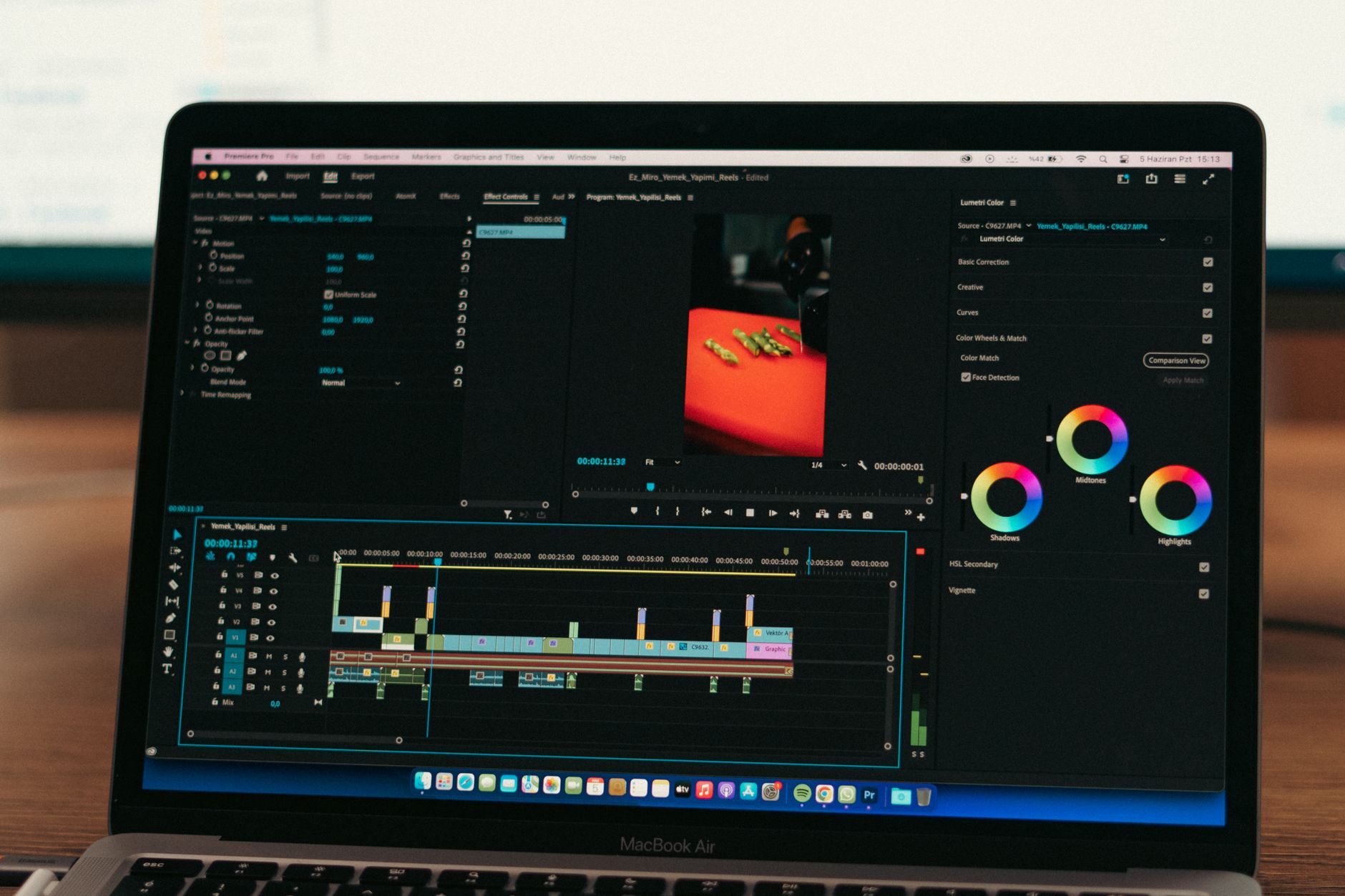
Runway remains the most complete generative video editor in 2026. The Gen-3 Alpha model produces coherent motion from text or image prompts, with clip lengths that are finally usable for real cuts. The timeline editor includes a motion brush that lets you isolate moving areas such as water, hair, or smoke. Camera controls for pan, tilt, and zoom give you more directorial control than most competitors. On the pricing side, the free tier comes with 125 one-time credits rather than a monthly refill. The Standard plan starts at $12 per month billed yearly, and the Pro plan is $28 per month billed yearly. Check Runway’s pricing page for current limits because credits can burn quickly.
The main drawback is that power users outgrow the credit model fast. A single 10-second generation can consume multiple credits depending on resolution and upscaling. If you need many iterations for a client project, you will likely need Pro or higher. That said, Runway is still the best bridge between AI generation and traditional editing, especially if you already use tools like best AI writing tool for long-form content to draft scripts and voiceover copy.
Key strengths:
- ✅ Strong generative motion control with motion brush and camera keyframes
- ✅ Timeline editor replaces separate editing software
- ✅ Regular model updates keep output quality competitive
- ✅ Green screen and object removal tools work well
- ❌ Free tier is one-time credits, not monthly
- ❌ Credit costs add up quickly for high-res renders
- ❌ Requires a fast connection for cloud previews
Who it’s for: Choose Runway if you want generative clips plus real timeline editing in one place.
2. Pika , Best for quick creative social clips
For fast, creative social clips, Pika is the tool I recommend. The free plan gives 80 monthly credits, which is enough to test several generations before paying. The $10 standard plan removes watermarks and adds higher resolution exports. Pika’s Pikaffects are distinctive: you can inflate, melt, crush, or explode objects in a clip with a single prompt. These effects perform well on TikTok and Reels where visual novelty matters.
Pika is not a full editor. It lacks a traditional timeline, multi-track audio, and detailed color grading. If you need to cut a 20-minute YouTube video, this is the wrong tool. Pair Pika with CapCut or Descript for the actual edit. For thumbnail ideas before you render, the best AI image generators guide covers models that match Pika’s style well.
Key strengths:
- ✅ Low-cost entry with 80 monthly free credits
- ✅ Pikaffects are easy and shareable
- ✅ Fast generations for short vertical clips
- ✅ Simple interface for beginners
- ❌ No full timeline editor
- ❌ Clip length still limited for long-form use
- ❌ Character consistency can drift across scenes
Who it’s for: Choose Pika if you need quick, eye-catching social clips without a steep editing learning curve.
3. Descript , Best for text-based video and podcast editing
Descript flips video editing around. Instead of dragging clips on a timeline, you edit the transcript. Delete the words and the video cuts automatically. That approach is far more intuitive for interview cleanup, podcast video, and screen recordings. The free plan includes 1 hour of transcription per month, which is enough for occasional short projects. Creator starts at $16 per month, and Pro at $30 per month unlocks more transcription hours and 4K export.
A real downside is that Descript is not a generative video tool. It won’t create a scene from text. It edits existing footage. But if you record talking-head videos, tutorials, or webinars, it’s faster than Premiere for rough cuts. If the script sounds flat or robotic, check our why AI writing sounds robotic fix guide before recording. Better audio makes Descript’s transcript editing even more accurate.
Key strengths:
- ✅ Edit video by editing the transcript
- ✅ Excellent filler word and silence removal
- ✅ Screen recording and multi-track audio built in
- ✅ Free plan includes real transcription hours
- ❌ No generative text-to-video features
- ❌ Timeline is less precise than Premiere for complex effects
- ❌ Higher tiers get expensive for teams
Who it’s for: Choose Descript if you edit talking-head or interview content and prefer text-based cuts.
4. Synthesia , Best for AI avatar corporate videos
Synthesia is the corporate standard for AI avatar videos. It’s built for training modules, onboarding, product explainers, and internal comms. You type a script and a lifelike avatar delivers it in one of over 140 languages. The free tier is a demo only, not a production plan. Starter costs $29 per month and includes 10 minutes of video per month. Creator at $89 per month includes 30 minutes and more avatars. These limits matter if you need multiple takes.
The tradeoff is obvious: you won’t get cinematic generative video. Synthesia’s avatars are solid but still avatar-based. For some audiences that works well. For brand-focused marketing, a real human may perform better. If you run a small business and need explainers at scale, compare best AI tools for small business for a broader stack.
Key strengths:
- ✅ Huge language and avatar library
- ✅ Consistent output for training videos
- ✅ No filming or editing required
- ✅ Enterprise collaboration features
- ❌ Monthly video minutes are restrictive
- ❌ Avatars can feel stiff for high-energy ads
- ❌ Not a general-purpose video editor
Who it’s for: Choose Synthesia if you need multilingual corporate training or explainer videos without filming.
5. HeyGen , Best for realistic avatar UGC ads
HeyGen focuses on realistic avatars and video translation. It has become a favorite for UGC-style ads and product demos where you want a human face without hiring actors. The free plan offers limited credits, enough for a test video. Creator pricing starts at $29 per month. The standout feature is video translation: you can upload a clip and HeyGen will lip-sync the speaker into another language. That saves reshoots for global campaigns.
There are limitations. Complex body movement and hand gestures can still render oddly. Long monologues are riskier than short, energetic lines. HeyGen also lacks a full timeline editor, so pair it with Descript or CapCut for final assembly. For help making the script sound less generic, the why AI writing sounds robotic fix guide applies to avatar narration too.
Key strengths:
- ✅ Realistic avatars suit UGC ads
- ✅ Video translation with lip-sync saves reshoots
- ✅ Fast rendering for short clips
- ✅ Simple interface for marketers
- ❌ Credit costs rise quickly with multiple avatars
- ❌ Longer scripts can expose avatar motion glitches
- ❌ No multi-track editing suite
Who it’s for: Choose HeyGen for realistic AI presenters and multilingual ad variations.
6. CapCut , Best for free social video editing with AI captions
CapCut remains the best free starting point for social video editing. It’s available on desktop and mobile, and its AI tools include auto captions, background removal, text-to-speech, and smart cutouts. The free tier is generous but some premium AI features now sit behind Pro at $9.99 per month. For TikTok, Reels, and Shorts, the workflow is faster than opening a professional NLE.
The drawback is that CapCut is not a serious generative video engine. It won’t create original footage from a prompt beyond basic effects. It also pushes templates that can make videos feel homogeneous. But as an editor for clips you generate elsewhere, it’s excellent. I use it to assemble Pika or Runway exports and add captions before posting.
Key strengths:
- ✅ Generous free editing features
- ✅ Auto captions and background removal are fast
- ✅ Desktop and mobile sync well
- ✅ Template library speeds up social cuts
- ❌ Premium AI filters locked behind Pro
- ❌ Not for advanced color grading or motion graphics
- ❌ Output can look template-heavy
Who it’s for: Choose CapCut if you edit social videos regularly and want a free or low-cost editor.
7. InVideo AI , Best for faceless YouTube explainers
InVideo AI is the fastest way to turn a prompt into a faceless YouTube explainer. You type a topic, choose a length, and the platform generates a script, pulls stock footage, adds voiceover, captions, and music. The free tier gives 10 minutes of AI generation per week, which is enough for one or two short videos. The Plus plan at $28 per month removes watermarks and adds more generation minutes.
The main issue is stock footage. InVideo pulls from libraries, so the visuals can feel generic or repetitive if you make many videos on similar topics. You also do not get pixel-level control over the edit. For volume channels and quick internal updates, that tradeoff is fine. For branded YouTube content, you may still need CapCut or Descript to refine the final cut.
Key strengths:
- ✅ Generates full videos from a single prompt
- ✅ Built-in voiceover, captions, and music
- ✅ Free weekly credits for testing
- ✅ Fast turnaround for faceless content
- ❌ Stock footage can look repetitive
- ❌ Limited manual editing control
- ❌ Voice options can sound synthetic
Who it’s for: Choose InVideo AI if you need bulk faceless explainer videos quickly.
8. Luma Dream Machine , Best for cinematic generative B-roll
Luma Dream Machine is for cinematic generative B-roll. Its text-to-video and image-to-video outputs often look more photoreal than Pika or Runway for certain scenes such as landscapes, product shots, and atmospheric movement. The free tier includes about 30 generations per month. The paid standard plan starts at $9.99 per month and adds faster rendering and more generations.
This is not an editor. You cannot assemble a timeline, adjust audio, or add captions. You generate clips, download them, and edit elsewhere. That’s fine if your workflow already uses CapCut or Premiere. For creators who need unique establishing shots or dreamy transitions, Dream Machine is a useful second tool rather than a full replacement.
Key strengths:
- ✅ Photoreal output for cinematic scenes
- ✅ Low-cost entry at $9.99 per month
- ✅ Good image-to-video motion
- ✅ Simple generation interface
- ❌ Short clips limit storytelling
- ❌ No timeline or audio tools
- ❌ Generation queues can delay renders
Who it’s for: Choose Luma Dream Machine for photoreal B-roll and atmospheric establishing shots.
Frequently Asked Questions
What is the best free AI video tool in 2026?
CapCut is the best free editor for social clips. Pika gives 80 monthly credits for generative video, and InVideo AI offers 10 minutes of generation per week. Free tiers work for testing but limit resolution, exports, or watermarks.
Which AI video tool is best for YouTube?
Descript for editing long talking-head videos and InVideo AI for faceless explainers. Runway works for generative B-roll, while CapCut handles captions and shorts. Most YouTube creators combine two tools.
Are AI-generated videos good enough for client work?
Yes for many use cases such as training, UGC ads, and social content. Runway and Luma produce strong B-roll. For high-end brand spots, human footage still wins. Always check resolution, watermark, and licensing terms.
How much do AI video tools cost?
Entry plans range from $9.99 to $29 per month for CapCut, Pika, HeyGen, and Synthesia. Advanced tools like Runway Pro and Descript Pro cost $28 to $30 monthly. Free tiers vary from monthly credits to one-time batches.
Can I edit AI-generated clips in these tools?
Runway includes a real timeline editor. CapCut and Descript are full editors. Tools like Pika, Synthesia, and Luma are generators that export clips for editing elsewhere.
What should I check before buying a paid plan?
Confirm whether credits reset monthly, what resolution is included, whether watermarks apply, and if you keep commercial rights. Compare the starting price against your weekly output.
What Should You Remember?
- Best overall: Runway combines generative video with serious timeline editing.
- Best free editor: CapCut handles captions, cuts, and social exports at no cost.
- Fastest faceless videos: InVideo AI produces a full explainer from a prompt in minutes.
- Best for interviews: Descript edits video by deleting transcript text.
- Check credit resets: Free tiers vary from 80 monthly credits to one-time batches.
- Pair tools: Use a generator like Pika or Luma with an editor like CapCut or Descript.
This article is for general information only. AI tool capabilities, pricing, and features change frequently , always verify current details on the vendor’s own site. Some links may be affiliate links that support this site at no cost to you.